About This Article
This article is a friendly, picture-based walkthrough for first-time OKCoinJapan (OKJ) users who are general investors wanting to issue their very first API key. It is aimed at people who want to link OKJ to a household-budget or asset-management app, or automatically record their balance — everyday “light automation”, no coding skills required. All screens reflect OKJ as of April 24, 2026.
Disclaimer: This article shares the author’s personal registration and operating experience. It is not investment advice or a recommendation to trade any specific crypto asset. Screens and terms of service may change, so always confirm the latest information on the OKCoinJapan screen itself.
What Is an API Key, Really?
An API key is a passphrase that lets another app safely read (or write) your OKJ account information. It is separate from the login ID and password you use yourself, and you can precisely decide “how much this app is allowed to see or do.”
Typical things you can do:
• Pull your OKJ balance into a household-budget app automatically
• Log your trade history into a spreadsheet every day
• Link OKJ to an asset-portfolio manager
Each of these only requires issuing an API key and pasting it into the other app. Programming knowledge is not required. If the partner app provides instructions, you just follow them.
What to Prepare Before Issuing the Key
You need a fully KYC-verified OKJ account. There are only two things to get ready in advance.
- A KYC-verified OKJ account
The API menu does not show up until KYC is complete. - A 2-factor authentication app on your smartphone (Google Authenticator, Authy, etc.)
The same 6-digit-code app you use at login is fine.
The Flow: 5 Steps, Screen by Screen
Key point: On OKJ, the API management screen lives inside “Security Settings” (セキュリティ設定).
If you ever wonder “where is the API page?”, open Security Settings first.
Step 1: Log in to OKJ
Log in to OKJ as you normally do. After login, you will see a row of icons at the top-right of the screen.
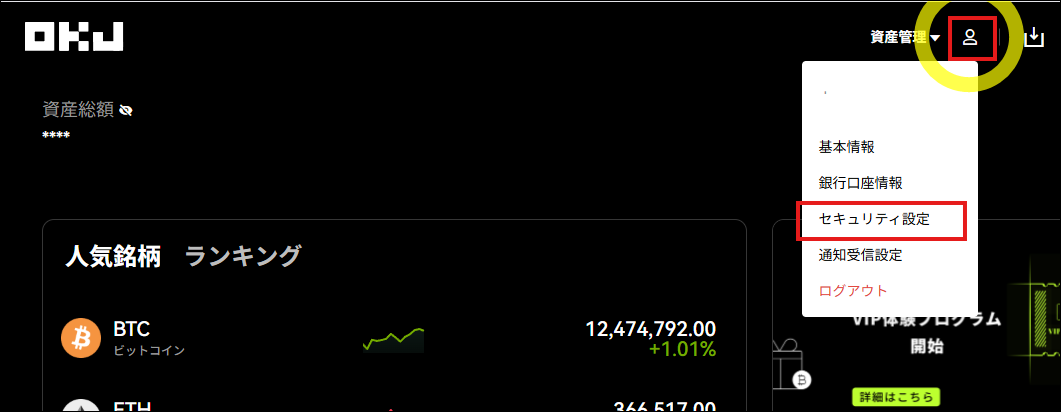
Step 2: Click the person icon at the top-right → choose “Security Settings”
Click the person-shaped icon at the top-right. A menu will drop down. Choose “Security Settings” (セキュリティ設定) from it.
Step 3: Find the “API” section → press “Create API key”
Scroll down the Security Settings page and find the “API” section. Click “Create API key” and fill in:
- Key name / memo: Something like “Budget app” or “Balance reader” that you will recognize later.
- Passphrase: An extra passphrase the partner app will need to read/write. This cannot be shown again later, so write it down on the spot.
- Permissions: Explained in detail below. For your first key, “Read” only is enough.
Step 4: Enter the 2FA and email verification codes
Follow the prompts and enter the 6-digit code from your authenticator app along with the email verification code OKJ sends you. This is the identity-confirmation step, so take your time.
Step 5: The API key and secret are shown → save them right now
This is the most important part!
Right after you press Confirm, OKJ shows you the API Key and Secret Key. The Secret Key is only ever shown on this screen. Copy it into a notes app or password manager immediately.
If you lose it, you will have to reissue the key.
Choosing Permissions (First-Timers: “Read” Only Is Plenty)
OKJ API keys have three broad permission types. Keep only what you actually need for your use case.
| Permission | What it lets you do | Recommended for |
|---|---|---|
| Read | View balance and history (no money moves) | First-timers: this alone is fine |
| Trade | Place and cancel orders | People experimenting with auto-trading |
| Withdraw | Send JPY or crypto out of the account | Leave this OFF until you’re sure |
To connect to a budget app or an asset-tracker, “Read” alone is enough. The Withdraw permission directly risks your funds if the key leaks, so create a separate key with Withdraw enabled only when you actually need it.
What Worked: Linking a Budget App and Freeing Up Time
The author issued a single read-only API key and linked it to an asset-management app. After that, daily balance history became visible in the app without logging into OKJ, and end-of-month summing-up dropped to almost zero effort.
Being nervous at first was natural, but since read-only cannot move money, “even if something goes wrong on the app side, it can only see” was a reassuring thought.
What Failed: Issuing a “Full-Permission” Key and Getting Scared
Just to try it, the author once created a single key with “Read + Trade + Withdraw” all enabled. Nothing bad actually happened, but the nagging feeling of “if this key leaks the whole account is drained” never went away, and the key got deleted and reissued shortly after.
Takeaway: Grant only the permissions that match the purpose. If the goal is “just view the balance,” never enable Trade or Withdraw.
The Whole Flow at a Glance
Three Habits to Adopt Right After Issuance
- Keep the Secret Key in a safe place
A password manager is ideal. Avoid leaving it in a plain-text memo. - Write down the key’s “name” and “issue date”
This prevents the “what is this key for, again?” confusion later. - Delete keys you no longer use
Old keys sitting around are what cause damage when a leak happens. “Not using it = safe to delete” is a good rule.
Summary
- An API key is a passphrase that lets other apps safely read and write your OKJ account
- Issuance path: top-right person icon → Security Settings → API
- For first-timers, “Read” permission alone is the safest start
- The Secret Key is only shown once — save it immediately
- Delete keys you no longer use
Relax and start with a read-only key. It cannot move money, so even a leak would not be catastrophic. Grow permissions gradually, only when your needs do.
Don’t Have an OKJ Account Yet?
The API key issuance described in this article assumes you already have an OKCoinJapan account. If you don’t yet, you can start a new account application from the button below. Once the account is ready, you can follow this article as-is to issue an API key.